
AI import reads whatever your old system gives you and turns it into drafts for you to check. Nothing is saved until you accept it.
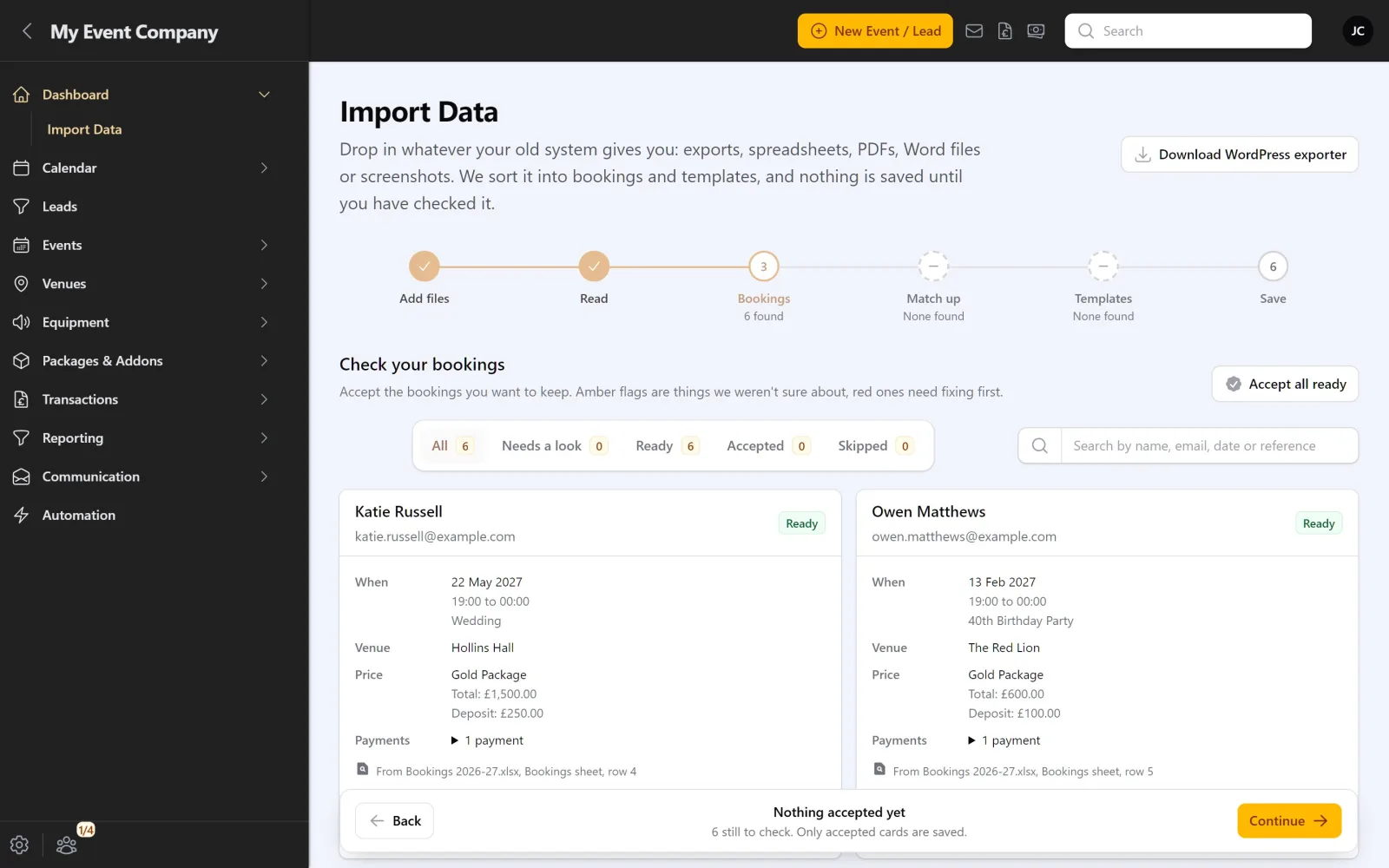
What you can drop in
- Spreadsheets: CSV, Excel (.xlsx) and OpenDocument (.ods)
- Documents: PDF, Word (.docx) and plain text
- Screenshots and photos: PNG, JPEG, WEBP and GIF, such as a picture of your paper diary
- The Mobile DJ Manager WordPress export: see Moving from the Mobile DJ Manager WordPress plugin
Old .xls and .doc files aren’t read. Open them and save them as .xlsx, .docx or PDF first. Each file can be up to 50 MB.
Step by step
- Go to Dashboard > Import Data.
- Add files: drag your files onto the page. You can add more at any time.
- Read: each file is read in the background. For spreadsheets you can see which column was understood as what, correct it and apply it again for free.
- Bookings: every booking found is shown as a card with the customer, date, venue, price and the file it came from. Anything the AI was unsure about is flagged for a second look. Edit a card, skip it or accept it.
- Match up: songs, payments, planning answers and emails that couldn’t be tied to a booking are listed here for you to place.
- Templates: email and contract templates, packages, add-ons and planning forms found in your files.
- Save: click save and the import runs in the background. You get a notification with how many records were saved, skipped or not saved.
Dates like 05/12/2026? If your files don’t make it clear whether that is 5 December or 12 May, the import asks you once and reads every date that way.
Undoing an import
Changed your mind? Open Import Data, find the import under past imports and undo it. Everything that import created is removed, and its drafts go back to review so you can fix them and save again. You can undo an import for 30 days after saving it.
Anything you have used since the import is kept, such as a venue or customer that a new booking now points to.
Things to know
- AI import is there for your first month, while you are moving in. After that it leaves the menu. If you need it again, contact support and we can open it for you.
- Automations don’t fire for imported bookings, so your customers don’t suddenly get a pile of emails about old events, and past events aren’t marked completed by an automation.
- An import you leave in review for 30 days without saving is closed, and its files are deleted.
- Each business has an allowance of pages the AI can read. Spreadsheets only use one page per sheet, because the AI only reads the headings and a few rows to work out the columns.
- Only admins can import.