
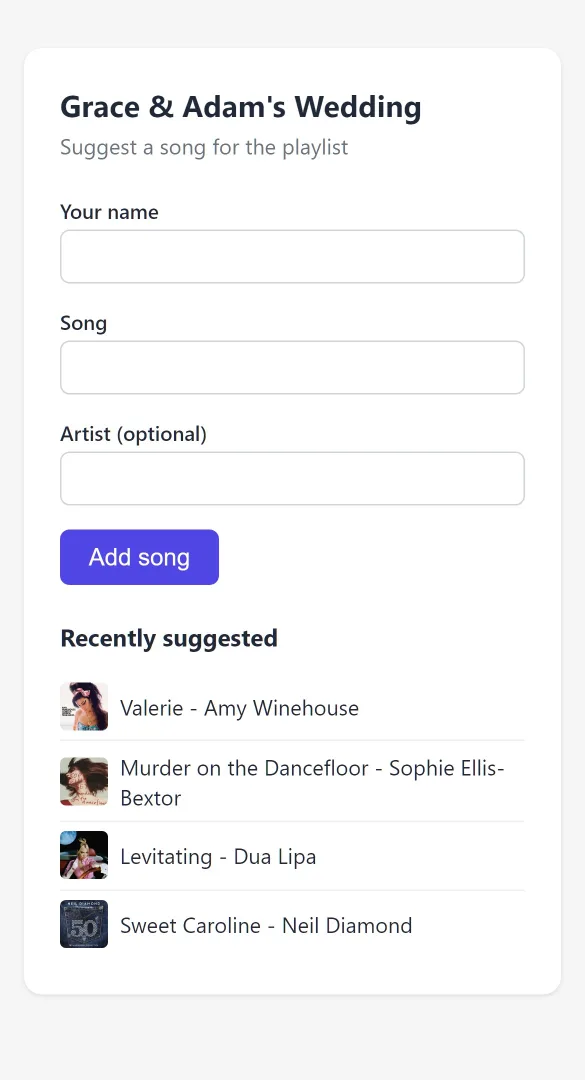
Each event can have a guest playlist. Your customer shares a link or QR code with their guests, and guests suggest songs without needing an account.
Switching it on
Guest requests are on for new events by default. Change that in Settings > Events > Playlist Defaults. On an event, use the playlist settings to switch requests on or off and set a song limit.
Sharing the link
Customers find their guest link and QR code in the portal, under Planning > Playlist, with buttons to copy the link. Put the QR code on invitations or table cards, or show it on the night.
What guests do
Guests enter their name, the song and the artist, and can add several songs in a row. They can see what has been requested so far. Requests can’t be made once the song limit is reached or the playlist has closed. See Playlist limits, categories and closing dates.
The page copes with a whole room scanning the code at once.
Track details
For every request, Mobile DJ Manager looks up the track and adds:
- album artwork
- length, release year, genre and album
- BPM and musical key
If the match isn’t certain, for example a live version when the studio one was asked for, it is flagged with a warning so you can check it.
Managing the playlist
The event’s Playlist tab lists every request with who asked for it and when. You can add, edit and remove songs at any time, even after the playlist has closed for guests. Customers can remove songs too, including their guests’.
Taking it with you
From the Playlist tab:
- Print a copy
- Email me a copy
- Download a CSV for your DJ software
Every song added fires the A song is added to the playlist automation trigger, if you want to be told.