
Mobile DJ Manager runs the business side of a DJ or event company in one place: enquiries, bookings, quotes, contracts, payments, planning and your team. This guide gives you the big picture so the rest of the knowledge base makes sense.
Two places, one system
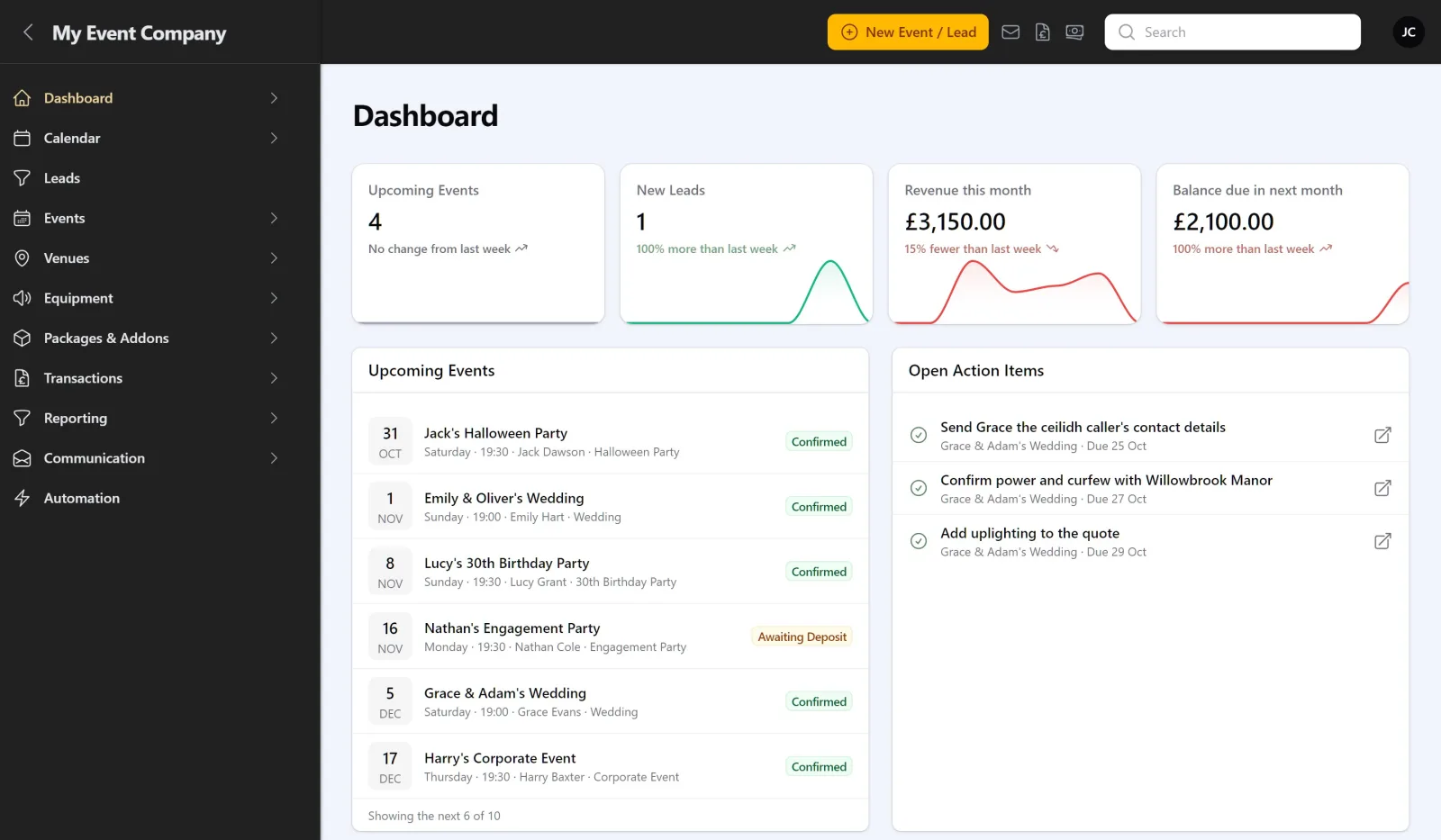
The admin area is where you and your staff work. You sign in at your own web address, see your dashboard, and manage leads, events, customers, venues, money and settings from the menu on the left.
The client portal is what your customers see. Each customer gets their own login, with your logo and colours, where they can check their booking, sign their contract, pay, fill in planning forms and build their playlist. See What your customers see in their portal.
How a booking moves through the system
- An enquiry arrives from the form on your website, or you add it by hand. It becomes a lead.
- You follow it up, moving the lead through stages such as Qualified, Meeting Scheduled and Date on Hold.
- You convert the lead to an enquiry and send a quote. The customer opens the quote and clicks to confirm.
- The contract goes out, usually automatically, and the customer signs it online.
- The deposit is paid, by card through Stripe or recorded by you, and the booking becomes Confirmed.
- Planning happens in the portal: forms, timeline and song requests, with reminders sent for you.
- After the event, it is marked Completed and any balance or invoice reminders stop.
Most of the emails along the way are sent by automations you can switch on, off or change. See How automations work.
Words you will see
- Lead: an enquiry you haven’t quoted yet.
- Event or booking: a date you have quoted or booked. Its status shows where it is, from Enquiry to Completed.
- Customer: the person who books you. Every customer can sign in to the portal.
- Employee: a member of your staff with a login of their own.